
download, freeware, microsoft, portable
- 6:30 PM - 0 comments
Fix Dissappeared Safely Remove Hardware Taskbar Icon
I assume everyone of you will be having this kind of problems in Windows XP. Sometimes, your "Safely Remove Hardware" icon is missing and you don't know how to eject your USB flash drive. The safest step you might think of is shutting down the computer (sigh) & pull out the drive. Anyway, that is not your only option & should be the last resort. Today, I will show you simple tricks how to safely eject your USB based drive (flashdrive, external HDD & etc).
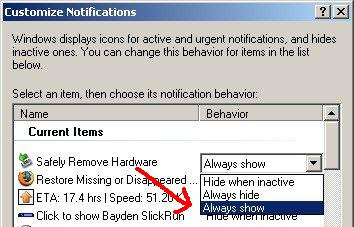
Firstly, check your "Hide Inactive Icons" settings for "Safely Remove Hardware" exactly as image below before continuing other methods.
If your taskbar icon still not available, please proceed with these methods.
1st Method
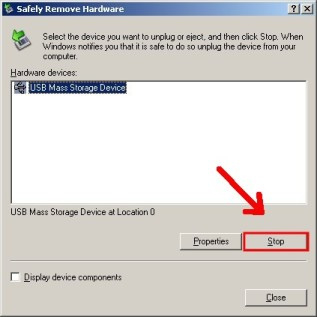
Try using the manual way by running a command. Go to Start >> Run >> copy/paste the command below and click OK.
This will popup "Safely Remove Hardware" dialog box. Then, you can safely remove your USB flash drive.
2nd Method
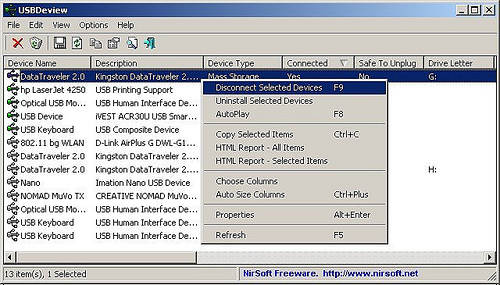
USBDeview - Freely available from NirSoft for ejecting your USB drive. Firstly, select your USB drive that you need to eject. Right click on your device and select "Disconnect Selected Devices" or press F9. Wait for a while and "Connected" tab status will turned from "Yes" to "No".
3rd Method
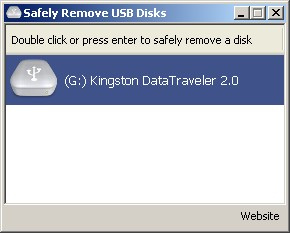
USB Disk Ejector - Its small & free. This is the easiest way to eject your USB drive. No installation needed for this tool and run in portable mode. Just double-click on selected drive and you're done.
Download USBDeview || Download USB Disk Ejector
Firstly, check your "Hide Inactive Icons" settings for "Safely Remove Hardware" exactly as image below before continuing other methods.
If your taskbar icon still not available, please proceed with these methods.
1st Method
Try using the manual way by running a command. Go to Start >> Run >> copy/paste the command below and click OK.
rundll32 shell32.dll,Control_RunDLL hotplug.dll
This will popup "Safely Remove Hardware" dialog box. Then, you can safely remove your USB flash drive.
2nd Method
USBDeview - Freely available from NirSoft for ejecting your USB drive. Firstly, select your USB drive that you need to eject. Right click on your device and select "Disconnect Selected Devices" or press F9. Wait for a while and "Connected" tab status will turned from "Yes" to "No".
3rd Method
USB Disk Ejector - Its small & free. This is the easiest way to eject your USB drive. No installation needed for this tool and run in portable mode. Just double-click on selected drive and you're done.
Download USBDeview || Download USB Disk Ejector









0 Responses to "Fix Dissappeared Safely Remove Hardware Taskbar Icon"
Post a Comment